
How to Add Google Analytics to Your Duda Website

August 29, 2022

Welcome to Duda Dojo with RivalMind, our all-things-Duda tutorial series. Today, we explore two important steps to tracking data on your Duda website:


  • Add your Google Analytics tracking code to your Google Tag Manager account
  • Ensure your Google Analytics tag is firing properly


As Universal Analytics is scheduled for discontinuation in July 2023, now is the perfect time to begin gathering data on your website before the switch to Google Analytics 4 next year. Refer to these sources to 
create a GA4 property and/or Google Tag Manager account, if you do not have these set-up yet.

Start in Google Analytics

 1. Start in the admin section of your Google Analytics account.


2. Select the property you would like to track. We already have a property and measurement ID established. If you do not have a property created, use the + Create Property button to make one and then resume these steps.


3. Navigate to Data Streams, and select the appropriate data stream to view Web stream details.


4. Copy the  Measurement ID.

Navigate to Google Tag Manager

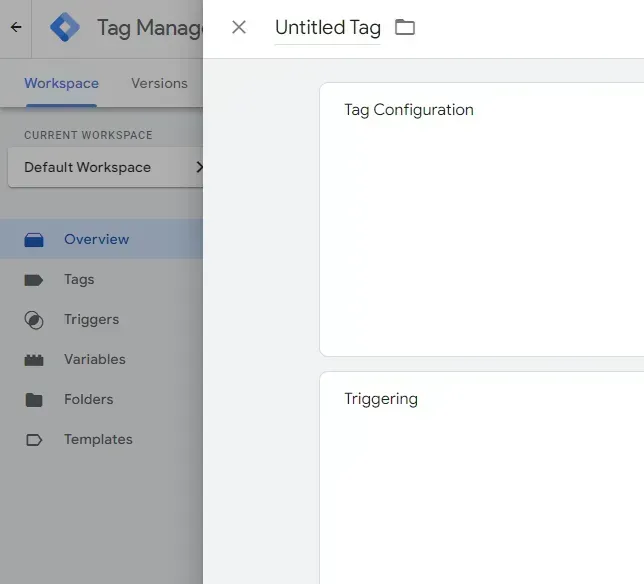
Google Tag Manager “Untitled Tag” screen with Tag Configuration and Triggering panels open

If you do not have a Google Tag Manager account, we highly recommend creating one! Tag Manager is the best way to embed JavaScript tracking on your website. At RivalMind, all JavaScript tracking we employ is implemented through Tag Manager, including click tracking, conversion tracking, scroll tracking, and video tracking.


1. Click Add new tag. Every tracking code is comprised of a tag and must start here.

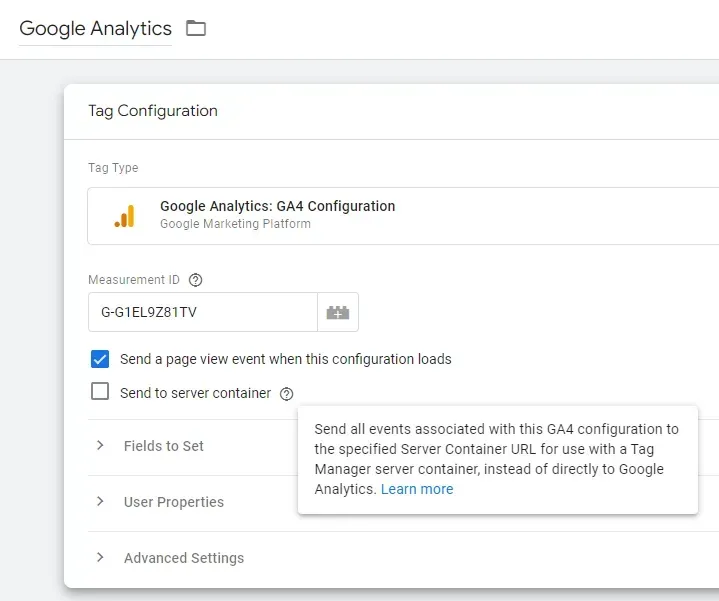
2. Rename the tag Google Analytics (or another name that will help you remember the purpose of the tag).


3. Click Tag Type, and select Google Analytics GA4 Configuration.


4. In Measurement ID, paste your Google Analytics ID.  


5. Make sure “Send a page view event when this configuration loads” is checked.

Google Analytics tag configuration screen with fields and settings panel
Google Meet page showing a centered microphone icon and prompt to join a meeting with audio disabled

6. Scroll to Triggering; click on Choose a trigger


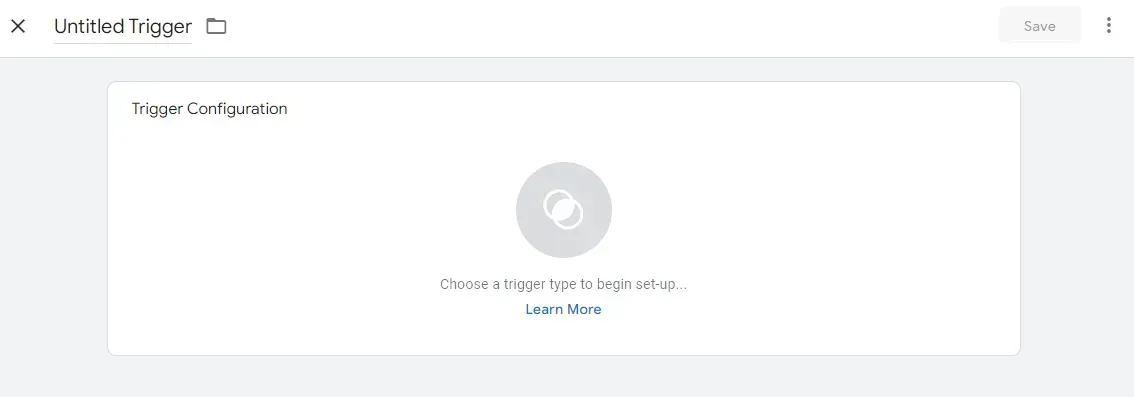
7. In the top right corner, click the + to create a new trigger.

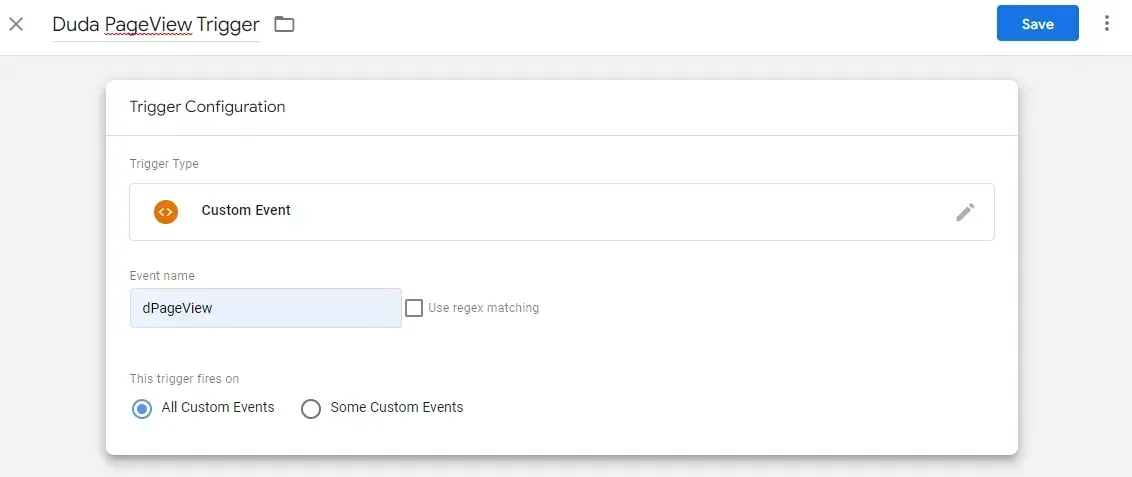
8. Rename your trigger Duda PageView Trigger


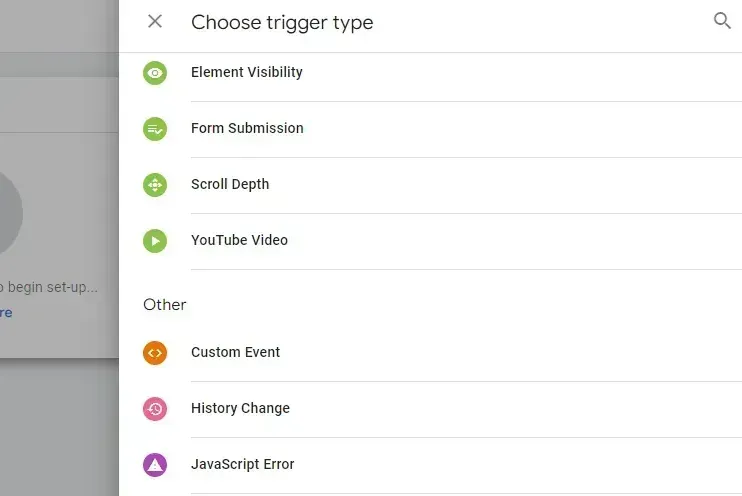
9. Select Choose a trigger type, and select Custom Event.

Popup menu titled “Choose trigger type” listing visibility, form submission, scroll depth, YouTube video, custom event, history change, and JavaScript error options.
Tiny screenshot of a web form with a text box and blue submit button, shown in a browser window

10. In the Event name text box, type “dPageView.” This is a Duda-specific page view trigger. Click Save.


11. Confirm that your Duda PageView Trigger has been added to the Triggering section of your Google Analytics tag. Click Save


12. In your primary Tag Manager view, click Submit. If desired, add a Version Name or Version Description to track your changes, then click Publish

Jump Into Duda!

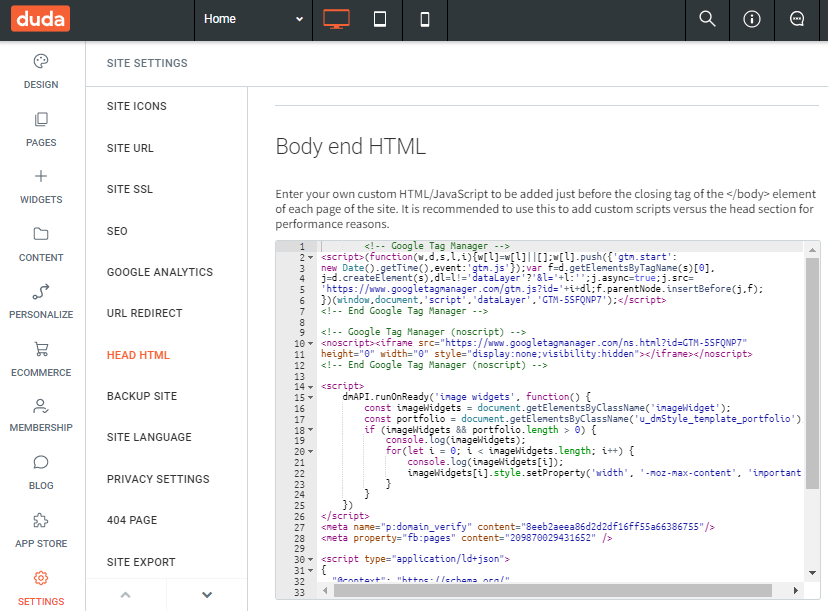
1. Navigate to your Duda editor; select Settings – Head HTML. This is where your Tag Manager code will live – and, indirectly, our Google Analytics code will live here too. Paste your Tag Manager code into the top of the Body end HTML box.


2. Republish your site to push all your changes live. Now, Google Analytics, Tag Manager, and your Duda website should all be working together.

Web page titled “Body and HTML” showing code editor and site navigation sidebar

Head Back to Google Analytics to Test Your Connection

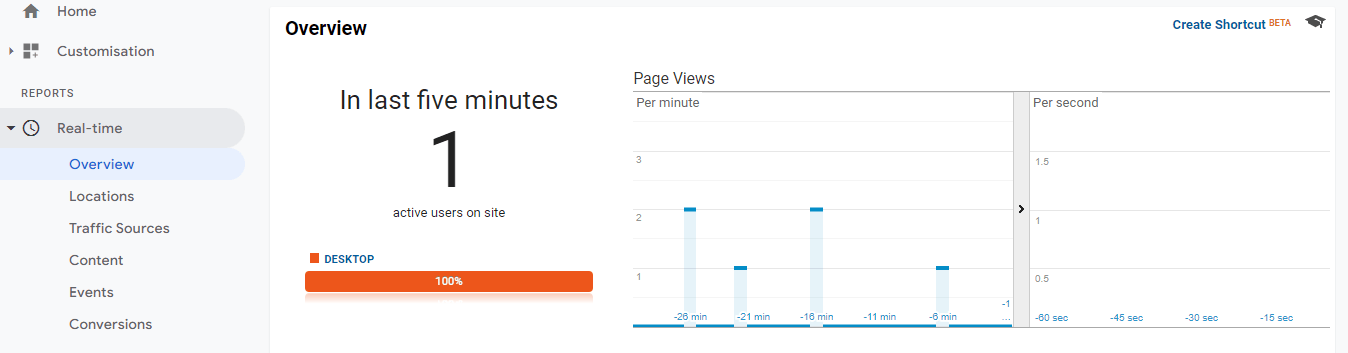
1.  In Google Analytics, navigate to Home to see real-time data.


2. 
Select Realtime overview.


3. Navigate to your live website.   


4. In your Realtime overview, you should see 1 current visitor on your website – that’s you! This provides confirmation that your code is working properly. 

Dashboard with menu sidebar, a large “1” metric, orange button, and small bar charts on the right

Are You Interested in More Duda Tutorials?

Did you enjoy this tutorial? For more like it, explore our YouTube channel or our Resources page to view past videos and stay updated on new videos. To request a Duda topic that you’d like to see us cover, give us a call at 331.228.9636 or complete our online contact form. We look forward to hearing from you!


As part of our comprehensive approach to website optimization, RivalMind offers
SEO services tailored specifically for Duda, ensuring that your content not only looks impressive but also ranks prominently in search engine results, driving more organic traffic to your site.

Looking for more organic website traffic?


Welcome to RivalMind. Our purpose is to help your business thrive. We are a digital marketing agency that offers SEO, PPC, Web Design, Social Media and Video Solutions as tools to our clients for online business development and growth.


Contact us today to get started!

Blog Contact Form

Connect With Us:

Common Digital Marketing Acronyms title on blue abstract background
By Dan Hayward September 2, 2026
In the world of digital marketing, acronyms are varied. The meanings of three and four-letter abbreviations can easily become misinterpreted.
Google SEO graphic: “How Is Google AI Sourcing Its Content? What Google’s Citation Data Means for SEO” with a smiling person
By Andy Francis September 2, 2026
Google's AI Overviews now cite far fewer top 10 pages. See what the new citation data means and how RivalMind tracks AI search visibility beyond rankings.
August 24, 2026
Many businesses invest significant time and resources into content marketing. They publish blog posts, share updates on social media, send emails, and create videos, all with the goal of reaching and engaging their audience. The challenge is that creating content and creating results are not the same thing. When content is guided by a clear strategy, it's easier to see how each piece fits into a larger effort. Without that direction, content can start to feel like a series of individual tasks rather than a meaningful way to connect with the people you're trying to reach .
Show More →